
How can we help?
Everything you need to take full control of your finances - from your first transaction to advanced planning, all in one private, offline-first app.
Introduction
Finaura is a personal finance app built on a single principle: your financial data belongs to you, and only you. Unlike every major budgeting app on the market, Finaura stores your data exclusively on your device. There is no Finaura server, no account to create, and no bank to link. Your information never leaves your hands unless you actively choose to back it up to your own Google Drive.
Despite its privacy-first architecture, Finaura is a full-featured financial platform covering budgeting, transaction tracking, bill management, debt payoff planning, investment projections, tax estimation, and much more - all working completely offline.
What's New in 2.0
Finaura 2.0 is a major update: a full visual refresh, a smarter and more capable Veda, redesigned Tax/Investments/Retirement pages, and a wide set of everyday workflow improvements. The same core logic you already trust is underneath all of it.
A Whole New Look
A new color palette, a cleaner two-font system (Geist for words, a condensed font for numbers), and flat, grain-textured cards replace the old metallic sheen everywhere, in both light and dark mode. Every add/edit screen is wider and more spacious on desktop.
A Smarter Sidebar and Multiple Budgets
The new Balance Hub keeps every account grouped and visible no matter what page you're on. You can also keep entirely separate budget workspaces and build multiple dashboards for a narrower view.
Veda Got Sharper
Ask Veda to add a transaction and confirm it before it saves - Veda's one action beyond answering questions. Every insight across the app now comes from one shared Smart Insights engine, so the numbers you see always agree. Merchants get real logos and matching colors as you type.
Tax, Investments, and Retirement Redesigned
Each page now leads with one clear results card instead of scattered panels. A real vehicle mileage tax deduction uses the actual IRS rate for the date you drove. Paying down a credit card now correctly records as a transfer instead of counting as spending - see Transactions.
Everyday Tracking and Planning, Refined
Schedule a transaction for later and confirm it once it happens. Group and color-code Planning categories, split a paycheck exactly how you want, and use a real calendar and numeric keypad on mobile instead of the device default.
Since 2.0: Make Each Budget Feel Like Yours
A batch of updates focused on making Finaura feel personal and giving you a clearer picture of where your money actually stands. Choose a personal image from Settings → Appearance to replace the app logo in your sidebar or mobile header - it follows you to your other signed-in devices without changing what anyone you share a budget with sees. Tap it (or the default logo) from anywhere in the app to open a quick Budget Home menu with links to Planning, Bills, and Personalization, plus a one-tap Lock app action that drops you straight to the lock screen. See Personal Budget Mark.
Settings → Appearance now offers 12 complete, hand-designed themes instead of a plain light/dark toggle - alongside Classic Light, Midnight, Ocean, Sunset, Forest, and Graphite, choose from Lagoon, Harbor Gold, Crimson Gold, Blue Steel, Cocoa Ember, and Ember Night. See Appearance & Themes.
Add a refund or reimbursement directly from an expense in Transactions, and Finaura nets it against that original spending instead of treating it as regular income. Spending from savings is now clearly marked and kept separate from your budget totals, and all three flows show up correctly in monthly reports and PDFs.
Bills and Subscriptions both open into a real overview now - what's paid, what's still due, and what's coming up in the next week - instead of a single running total. Goals gained a "this month at a glance" progress view and a banner suggesting how to split any money you have left over across your goals.
New: Journal, Calculator, and a Universal Menu
A standalone Journal for free-form notes, decisions, and plans, and a full Calculator that floats over whatever page you're on, both reach through toggleable icons in the desktop sidebar's action row or the mobile "More" tray. On desktop, right-click anywhere for a quick-actions menu, or record your own keyboard shortcuts for 14 common actions - every row in the app also supports long-press and swipe on mobile now.
New: Financial Story, Monthly Reports, and Build a Widget
Reports gained three tabs: Financial Story turns your data into an automatically-detected timeline of milestones plus your own memories; Monthly & Yearly Report generates a frozen, downloadable PDF snapshot of a completed period; and Build a Widget lets you compose your own chart from any data source and add it to any dashboard.
New: Stashes and Redacted Mode
Stashes let a savings account hold several named sub-goals - "Vacation," "Emergency Fund" - each with its own progress, without opening a separate account. Redacted Mode masks every dollar figure on screen behind dots (with all your math still running underneath) for the moment you'd rather not show every number.
Installing the App
Finaura is a Progressive Web App (PWA) - it runs in your browser and can be installed to your home screen or desktop without an app store. Installation is optional but recommended for the best experience.
Option 1: Use it directly in the browser
Simply open Finaura in any modern browser (Chrome, Safari, Firefox, Edge). No download required.
Option 2: Install as an app (Recommended)
Installing gives you an offline-capable, full-screen experience that loads instantly - even without an internet connection.
| Platform | Browser | How to Install |
|---|---|---|
| Android | Chrome | Tap the three-dot menu → "Add to Home Screen" or use the Install App button in Settings |
| iPhone / iPad | Safari | Tap the Share icon → "Add to Home Screen" |
| Windows / Mac | Chrome / Edge | Click the install icon in the address bar, or use Settings → "Install App" |

First Launch
When you open Finaura for the first time, you'll be greeted by the Welcome screen. This is shown only once to introduce the app and its privacy-first approach. The personalize step now requires a quick agreement to the Terms of Service and Privacy Policy before continuing.
Tap "Get Started" to begin the Setup Wizard. If you're a returning user restoring from a backup, tap "Returning user? Restore from backup →" instead.
Setup Wizard
The Setup Wizard walks you through the one-time configuration of your Finaura account. The whole process takes about 3-5 minutes.
Step 1: Personalize
Enter your first name and (optionally) your display name. You'll also check two required boxes agreeing to the Terms of Service and Privacy Policy - both link to the real documents. Your name appears on the lock screen as a personal touch.
Step 2: Security
Choose how you want to protect your financial data:
- PIN: A 6-digit numeric PIN. Fastest to enter, ideal for mobile use.
- Password: A text passphrase (12+ characters, with upper/lowercase, a number, and a special character, checked live as you type). Longer but easier to remember for some users.
You'll enter your chosen credential twice to confirm it, then set a Recovery Password: a backup phrase used to reset your PIN if you ever forget it.
Step 3: Optional Security
A skippable step lets you set up an authenticator app (TOTP) or a passkey (biometric unlock) right away, instead of only being offered later in Settings.
Step 4: Income Categories
Add the sources where your money comes from - for example: Salary, Freelance, Rental Income. You can choose from suggested categories or type your own. Add as many as you need.
Step 5: Expense Categories
Add categories to organize your spending - for example: Groceries, Rent, Utilities, Dining Out. These become the rows in your budget grid.
Step 6: Savings Categories
Add what you're saving toward - for example: Emergency Fund, Vacation, Down Payment, 401(k). Savings are tracked separately from expenses.
Step 7: Gross Household Income
Enter your annual gross income (before taxes, from all sources). This is used to power retirement projections, tax estimates, and paycheck hints. You can skip this now and add it later in Settings.
Step 8: Household
Tell Finaura how many adults and dependents under 17 are in your household. This pre-fills your tax estimate and is used by a few other projections - you can change it later in Settings.
Step 9: Accounts
Add your real bank accounts - checking, savings, money market, cash, credit, or other - with their current balance. These become real Account records that show up grouped and live in the sidebar's Balance Hub (Cash & Banking, Savings, Credit Lines, and Other), not a one-off number.
Step 10: Advanced (Optional)
An optional step lets you set your pay frequency, tax filing status, opt in to budget rollover, and configure late-income shift, all up front. Skip it and configure any of these later in Settings - nothing here is required to finish setup.
Done!
After completing the wizard, Finaura automatically seeds your budget grid with a starting budget based on your income. A brief guided tour then walks you around the app.
PIN & Security
Every time you open Finaura after a period of inactivity, you'll see the lock screen. Enter your PIN or password to access your data. The lock screen now follows your device's light or dark mode preference, with a matching gold-accented keypad in both.
Lock Screen Features
- Biometric / Passkey unlock: If your device supports Face ID, fingerprint, or a saved passkey, you'll see a "Use Face ID / Passkey" button for one-tap access.
- Rate limiting: After 5 failed attempts, the lock screen enforces a 30-second cooldown to prevent brute-force access.
- Forgot PIN?: Tap this to enter your recovery password and set a new PIN without losing any data.
If You've Forgotten Both Credentials
If you've forgotten both your PIN and your recovery password, there is no server-side reset - Finaura has no account system. The only option is to clear all app data and start fresh. On the recovery screen, tap "Forgotten your recovery password too?" to access the Last Resort option, which permanently wipes all local data.
Changing Your PIN or Password
Go to Settings → Security to change your PIN, switch between PIN and password mode, update your recovery password, or set up a Passkey (biometric unlock). Choosing password mode now requires the same 12-character-plus complexity rule as setup, with a live checklist while you type.
Two-Factor Authentication (TOTP)
For an additional layer of security, Finaura supports TOTP (Time-Based One-Time Password) authentication - compatible with Google Authenticator, Authy, and any standard authenticator app. Enable it in Settings → Security → Two-Factor Authentication. Entering a code uses the same 6-box auto-advancing input everywhere it's needed, including at login.
Locking the App Manually
You don't have to wait for the auto-lock timer if you want to step away right now - open the Budget Home menu (click the logo/mark in the sidebar) and choose Lock app to lock the vault immediately.
Guided Tour
After completing setup, Finaura walks you through the key areas of the app with an interactive overlay tour. The tour adapts to your device:
- Desktop: Steps highlight each item in the sidebar navigation in order, including the Balance Hub.
- Mobile: Steps highlight the bottom navigation bar and explain the quick-add button.
The tour includes a dedicated Meet Veda stop introducing the chat assistant, on both desktop and mobile. After the navigation tour, a series of information cards covers privacy, the monthly workflow, power tips, the trophy system, Google Drive sync, and PWA installation.
Every main page also has its own shorter "Quick Tour," offered the first time you visit it, including a new tour for Settings covering Customize Sidebar, multiple budgets, and the Balance Hub group editor. You can replay any tour at any time: go to Settings → Help → Replay Tour.
Mobile "More" Tray
On mobile, the bottom navigation bar's "More" button opens a grouped icon grid - the same Obligations / Grow / Insight groupings used on the desktop sidebar - instead of one long scrolling list. Trophies and Settings sit together in a final "You" section. Every destination is reachable within a single thumb's reach on most phone sizes.
How Finaura Works
Finaura uses a plan-then-track approach to budgeting. At the start of each month, you set spending limits in Budget Planning. Throughout the month, you log what you actually spend in Transactions. The rest of the app - Dashboard, Budget Progress, Forecast, Reports - shows you how actual spending compares to your plan.
The Monthly Loop
Budgets vs. Transactions
It's important to understand the difference between the two core data types in Finaura:
| Budget Amounts | Transactions |
|---|---|
| Set in Budget Planning | Logged in Transactions |
| What you plan to spend | What you actually spent |
| One amount per category per month | Multiple entries per category per month |
| Carry forward until changed | Never carry forward - each is a dated event |
| Used for: Dashboard, Forecast, Budget Progress | Used for: Reports, Tracking, Dashboard actuals |
Months & Periods
Finaura organizes everything by month (called a "period"). The period selector at the top of the Dashboard and Transactions views lets you navigate between months.
Late Income Shift
If you receive a paycheck near the end of the month and want it to count toward the next month's budget, enable Late Income Shift in Settings. Any income logged on or after your configured day threshold (e.g., the 25th) will be attributed to the following month's income total - even though it's dated in the current month.
This is particularly useful for people who are paid on the last Friday of each month, since that payment is really funding next month's expenses.
Categories
Categories are the backbone of Finaura. Every budget entry and every transaction belongs to a category. There are three types:
| Type | Purpose | Examples |
|---|---|---|
| Income | Where money comes in | Salary, Freelance, Rental, Side Business |
| Expense | Where money goes out | Rent, Groceries, Utilities, Dining, Gas |
| Savings | Money set aside | Emergency Fund, Vacation Fund, 401(k) |
Managing Categories
Go to Settings → Categories to add, rename, reorder, or deactivate categories. You can drag categories to change their order, which affects how they appear in the Planning grid and Transactions.
Groups
In Budget Planning, categories can be organized into collapsible, renamable, color-coded groups. Drag a whole group at once to reorder it, or drag a category into, out of, or between groups. A category with no group simply floats freely - there's no permanent "Ungrouped" bucket to manage.
Automatic Icons
Every category gets a colored icon automatically, matched by keyword (e.g. "Groceries" gets a cart, "Mortgage" gets a house) - no two of your categories ever end up with the same icon. Click any category's icon badge in Budget Planning to override it from the full icon picker.
Balance Hub
Balance Hub is a persistent panel in the desktop sidebar, always visible no matter which page you're on, showing every account you track with its live balance. It isn't a separate page - it's part of the sidebar itself.

Groups
Every account belongs to a group. Four starter groups are created automatically based on account type, but you can rename, reorder, or delete groups from the gear icon at the top of the panel. Deleting a group never deletes its accounts - they simply move back to the default group for their type.
Adding an Account or Group
Use the "+" icon in the Balance Hub header to quickly add a new account (with its starting balance) or a new group, without leaving whatever page you're on.
Viewing Details
Click a group's summary row, or the "view accounts" icon, to open a popover listing that group's accounts with their own balances. A credit account's balance is shown as what's owed, not a positive number.
Stashes: Sub-Goals Inside a Savings Account
A Stash is a named target inside one savings account - "Vacation," "Emergency Fund," "New Laptop" - that tracks its own progress without splitting the money into a separate account. Open a savings account's panel and use the Stashes icon to add one, then tag any savings transaction to it from the Transaction Drawer. Each Stash shows a live total (the sum of everything tagged to it) and an optional target amount you can set or change at any time - it's never a one-time choice.
A Stash can also become the real funding source for a linked Goal - see Goals for how linking works.
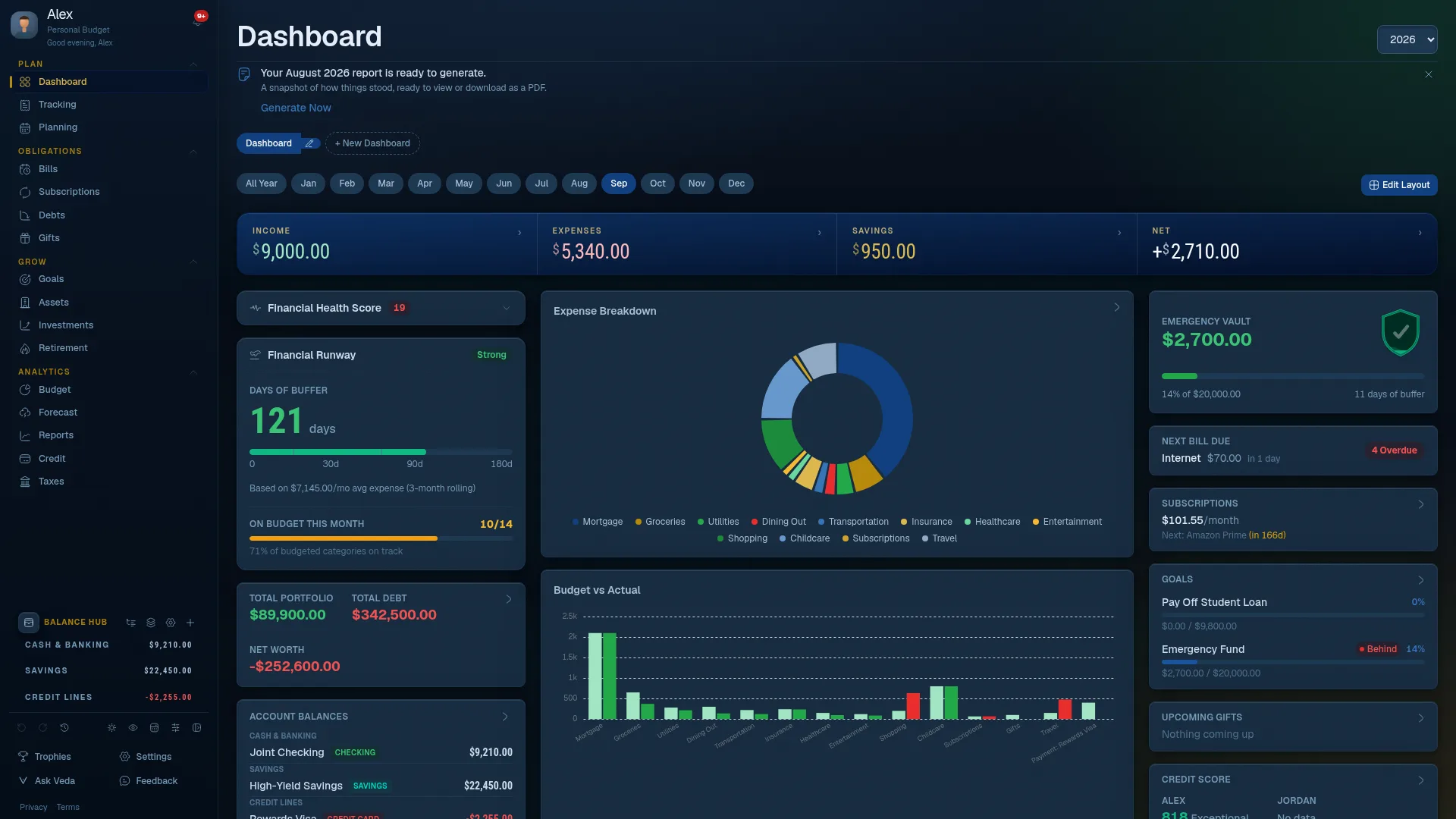
Dashboard
The Dashboard is your financial home base - a real-time snapshot of your income, spending, and savings for the currently selected month.
Summary Cards
Four colored cards show the current month's totals at a glance:
- Income: Total money received this month (emerald border)
- Expenses: Total money spent this month (red border)
- Savings: Total saved this month (teal border)
- Net: Income minus expenses minus savings (shows how much is left over)
Charts
The Dashboard includes several visualizations:
- Expense Donut: Two concentric rings: the inner ring shows budget amounts, the outer ring shows actual spending. Categories over budget appear in red.
- Budget vs. Actual Bar Chart: Side-by-side bars for each expense category showing budget vs. actuals. Red bars indicate over-budget categories.
- Money Flow: A Sankey diagram showing where income actually went, category by category.
Customizable Widget Layout
The Dashboard supports many optional widgets that you can drag to rearrange, lock in place, or hide. Turn on "Edit Layout" to rearrange, and use the "Available widgets" list at the bottom of edit mode to add anything currently hidden, including newer widgets like Spending Trends, Income vs Expenses, and Month-over-Month.
Switching Months
Use the month pills or the < > arrows at the top to navigate between months. The Dashboard and Transactions view share the same period - changing it in one changes it in both.
Month-End Surplus Recommendation
When you select a closed (specific, past) month with money left over, a Smart Insight recommends one concrete place to put it - your highest-interest debt, a 401(k)/IRA still short of its employer match, or your closest savings goal - based on the Goal Track you've selected on the Goals page. It's a suggestion only; Finaura never moves money or logs a transaction for you.
Multiple Dashboards
Beyond your original Dashboard, you can create additional dashboards for a narrower view - for example, one that's just bills and subscriptions, or one that's just charts.

Creating a Dashboard
Use "+ New Dashboard" in the tab row above the month pills. A new dashboard starts completely blank - you build it up from the "Available widgets" list in Edit Layout mode, the same way you'd add a hidden widget back to your original Dashboard.
Switching and Deleting
Tap a tab to switch dashboards. A custom dashboard's tab has its own rename and delete icons; deleting one only removes that dashboard's own layout, never any of your actual data.
Budget Planning
Budget Planning is where you decide how much to allocate to each category each month. Think of it as writing your financial plan for the month before it happens.
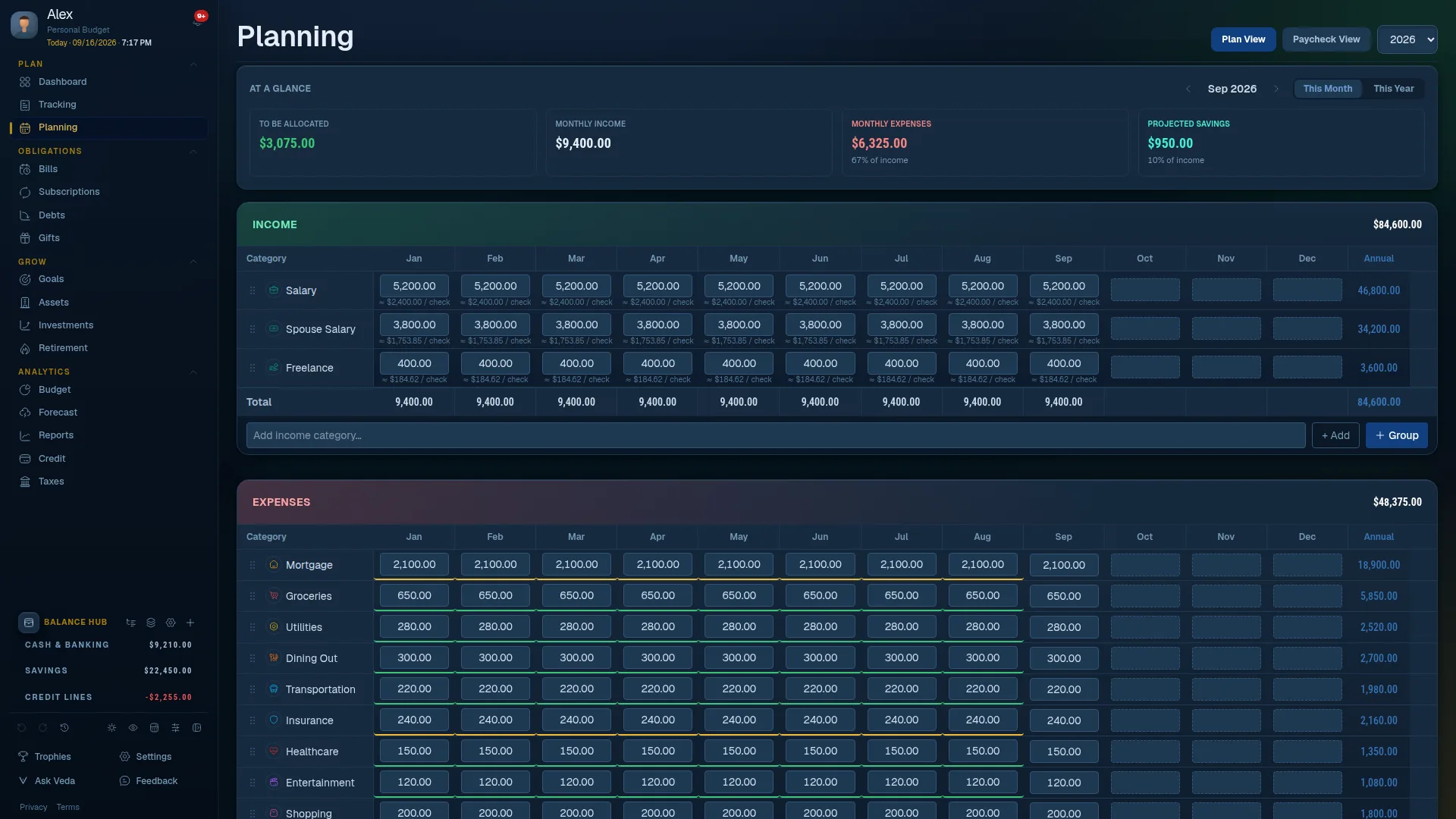
The Planning Grid
The grid shows your categories as rows and all 12 months of the year as columns. Each cell is an editable amount for that category in that month.
Entering a Budget Amount
Click or tap any cell to edit it. Type the amount and press Enter or click away to save. Right after you save, a small "Apply $X to all months →" chip lets you broadcast that amount to the rest of the year in one tap.
Income / Expense / Savings Tabs
The Planning view is organized into three tabs - one for each category type. Switch between them using the tabs at the top of the grid.
"At a Glance" Panel
Near the top of the page, a toggle switches between "This Month" (a 2x2 card mirroring mobile's summary) and "This Year" (the same "To Be Allocated" strip as before), so you always know where you stand without scrolling.
Paycheck View
Switch to Paycheck View (once a pay frequency is set) to see your budget broken down per paycheck instead of per calendar month. Most categories split automatically and proportionally across paychecks, based on your real spending history where available; you can also set an exact percentage or dollar amount per paycheck for any category from its sliders icon.
Reordering and Grouping Categories
Drag the ☰ handle on any row to reorder categories, or use "+ Group" to create a collapsible, color-coded group. Drag a whole group at once, or drag a category into, out of, or between groups.
Budget Rollover
Enable Budget Rollover in Settings to carry unspent money forward to the next month. For example, if you budget $200 for Groceries but only spend $160, the $40 surplus rolls into next month's effective grocery budget. This is opt-in and can be toggled per-category.
Transactions
Transactions is where you log every dollar that comes in or goes out. This is your financial ledger.

Adding a Transaction
There are three ways to add a transaction:
- Quick-add (FAB button): Tap the large + button at the bottom right of the screen. A slide-up drawer appears with a form. This is optimized for speed - minimal taps, keyboard-friendly on desktop.
- Transaction Table: On desktop, you can also click "+ Add Transaction" above the table for the same form.
- Ask Veda: Tell Veda what to log (for example, "add a $40 expense for groceries") and confirm the drafted transaction before it saves.
"More Options" on Mobile
On mobile, every add/edit form across the app - Transactions, Bills, Debts, Goals, Subscriptions, Investments, Credit, and Gifts - shows only its essential fields up front. A "More options" toggle reveals secondary fields (notes, tax category, links, and similar) when you need them. Nothing is removed, only tucked away; editing an existing entry, or one already carrying optional data, opens with "More options" expanded automatically.
Merchant Field
On an expense transaction, start typing a merchant name and Finaura shows matching results with a real brand logo or a colored-initials badge, so you can see at a glance what you're logging. A merchant with no dataset match can still be saved as a custom entry with its own generated badge.
Transaction Fields
| Field | Description | Required |
|---|---|---|
| Account | Which bank/credit account this belongs to | No |
| Date | The date of the transaction (defaults to today) | Yes |
| Type | Income, Expense, Savings, Transfer, Withdrawal, or Adjustment | Yes |
| Category | Which category this belongs to | Yes |
| Amount | The dollar amount | Yes |
| Merchant | An autocompleted merchant reference with a logo, expense-only | No |
| Details | Description or notes | No |
| Pay down account | Reduces a credit card's balance as a transfer, expense-only | No |
| Tax Category | Mark as a tax-deductible expense, including Vehicle Mileage | No |
| Linked Debt / Goal / Investment | Auto-updates the linked record's balance or progress | No |
| Schedule for later | Enter a transaction ahead of time; it doesn't count until you confirm it | No |
Paying Down a Credit Card
Add an expense from the account you're paying from, and set "Pay down account" to the credit card. This is recorded as a transfer, so it correctly reduces what you owe on the card without inflating your tracked spending totals - the older "Track card payments" mechanism is retired.
Vehicle Mileage Deduction
Choose "Vehicle Mileage" as the tax category on an expense, enter the miles driven and a purpose (business, military move, or charitable), and Finaura computes the deduction using the real IRS standard mileage rate in effect for that exact date, including the correct rate if it changed partway through the year.
Scheduled Transactions
Turn on "Schedule for later" on any transaction type to enter it ahead of time with no effect on your balances or budgets. It shows an amber "Scheduled" badge in the list; use the "Confirm" action on that row once it actually happens to count it.
Split Transactions
When a single purchase spans multiple categories (e.g., a store run where you bought groceries AND clothing), you can split it. Check "Split transaction" in "More options" to divide the total amount across multiple categories. All split amounts must add up to the parent total.
Editing and Deleting
Hover over a transaction row to reveal the edit (pencil) icon. Click it to open the edit form. To delete, click the trash icon - you'll be asked to confirm before the entry is removed.
Filtering and Sorting
Compact filter and sort icon buttons sit directly above the transaction table (both mobile and desktop). Filter by category or account; sort by date, amount, category, tags, details, or account.
Spend Map
Switch to Spend Map to see a calendar heatmap of your daily spending for the month - darker days mean heavier spending. Tap any day to see exactly what happened.
Running Balance
The transaction table shows a running balance column. If you've starred an account as primary in the Balance Hub or Settings → Accounts, this column anchors on that account's real balance and rolls forward from there instead of starting at zero.
Excluding Transactions
If a transaction should be visible in the ledger but excluded from budget calculations, mark it as Excluded in the edit form.
Refunds and Reimbursements
Got money back for something you already logged as an expense? Open that expense's row menu (the "⋯" icon - or right-click it on desktop, long-press on mobile) and choose Add refund or Add reimbursement. Finaura opens a drawer already tied to the original expense, showing how much of it is still available to offset, and nets the amount against that expense's own category instead of counting it as fresh income. This keeps your income total honest - a refund was never really "new" money, it's just money coming back.
Spending From Savings
When you spend money you'd already set aside in savings, tap Spend from Savings right below the Amount field on a new expense. Finaura records it as a withdrawal instead of a fresh expense, tagged so it doesn't add to this month's spending - the money was already counted as savings once when you originally put it there, so spending it back out isn't new spending in your budget.
Budget Progress
Budget Progress shows how each spending category is tracking against its budget for the current month, across all three category types - income, expense, and savings. It answers the question: Am I on track?

Color Coding
- Green - On track or under budget for where you are in the month.
- Amber - Spending faster than expected for the time of month; watch out.
- Red - Over budget for the month.
Pacing Badges
Each category shows a pacing badge that compares your spending rate to how far through the month you are. For example, if you've spent 80% of your Dining budget but it's only the 10th of the month, you'll see an amber "Spending Fast" badge. For income and savings categories, the badge instead reads "ahead of pace" or "behind pace," since more is better there.
Covering an Overspent Category
If a category is over budget, you can cover the overage from another category with unspent room - including a savings category, which can act as a donor the same way an expense category can.
Activity Marker
Each row shows the most recent transaction that touched that category this period - a signed amount and a date - so you can see at a glance what just happened without leaving the page.
Unbudgeted Spending
At the bottom of the view, a footer lists any categories with transactions but no budget set. This highlights spending that isn't being planned for.
Bills
Bills tracks your recurring obligations so nothing slips through the cracks. It shows every bill's due date, amount, and payment status.
Overview Cards
The top of the page now leads with a real overview instead of a single running total: a "Paid this month" donut, a "Still to pay" bar showing what's overdue vs. upcoming, and a mini-chart of what's due in the next 7 days - so you can see where you stand for the month at a glance, before you even scroll to the list.

Bill Fields
| Field | Description |
|---|---|
| Name | The name of the bill (e.g., "Electric Bill") |
| Amount | The usual amount due |
| Due Day | Day of the month it's due (for monthly bills) |
| Recurrence | Monthly, weekly, biweekly, nth weekday, semiannual, or annual |
| Category | Optional link to an expense category for transaction pre-fill |
| Priority | High, Medium, or Low - affects sort order and urgency display |
| Status | Not Paid, Paid, Pending, or Scheduled |
Marking Bills Paid
Tap the checkmark on any bill to mark it as paid for the current month. Bills reset to "not paid" at the start of each month automatically.
Logging a Bill Payment
Tap "Log it" to open a transaction drawer right in place, prefilled with the bill's amount and category - no need to leave the page. Saving it also marks the bill paid automatically.
Overdue Detection
Bills whose due date has passed without being marked paid automatically show as Overdue. High-priority overdue bills are highlighted prominently.
Bill Calendar
Switch to Calendar view to see all your bills and income transactions plotted on a monthly calendar. This helps you see cash flow timing - when money comes in and when bills are due.
Triple Paycheck Month
If your paycheck frequency means you'll receive three paychecks in a calendar month (happens a few times per year for biweekly pay), Finaura flags it in the Bills calendar so you can plan how to use the extra income.
Gifts & Holiday Planning
Gifts gives every recipient their own row - with its own budget, status, and savings pacing - so gift-giving is planned and tracked independently of your general expense budget. There's no combined multi-recipient "event"; a holiday with five recipients is five separate rows.

Status Pipeline
Every gift moves through five stages: Idea → Budgeted → Purchased → Wrapped → Given. Use the inline status select in the list, or tap a gift pill on the calendar to advance it one stage at a time. Nothing forces linear order - you can move a gift backward too.
Recurring vs. One-Time Gifts
Gifts default to annual recurrence, anchored to the month and day of the event date (e.g. a birthday). Turn off "Repeats annually" for a one-time occasion, like a specific year's graduation gift.
No Category Picker
Adding a gift doesn't ask you to choose a category - Finaura automatically finds or creates a shared "Gifts" expense category the first time you add a gift. You'll never see a stray, unbudgeted gift category cluttering Budget Planning.
Calendar View
Switch to Calendar to see every gift plotted on a single full-screen month. Tap a gift pill to advance its stage; press and hold for a detail sheet with savings-pacing advice, last year's total for that recipient, and quick actions to log a transaction or edit the gift.
Savings Glide Path
For any gift that isn't fully funded yet, Finaura shows a "$X/week for N weeks" pacing hint so you know how much to set aside before the date arrives, both in the list and in the calendar's detail sheet.
Collision Warnings
When two or more gifts fall within a 10-day window, an amber banner totals them up - "4 gifts within 10 days totaling $240" - so a cluster of birthdays or a holiday season doesn't catch your budget by surprise.
Holiday Overlay
Toggle "Holidays" above the list or calendar to show a curated U.S. gift-giving holiday calendar (Christmas, Mother's/Father's Day, Valentine's Day, Thanksgiving, and more) directly on the page. An amber chip banner surfaces any holiday due within 14 days; tapping a holiday chip - or a holiday label on the calendar - opens the Add Gift form prefilled with that date. This calendar is purely informational and never creates a gift on its own.
Logging a Gift as a Transaction
"Log it" opens a transaction drawer right in place, prefilled with the gift's amount, category, and a "Gift: [Name]" label. Saving it also advances the gift's status to Purchased, unless it's already further along.
Subscriptions
Subscriptions gives you a dedicated view of all your recurring subscription services - streaming, software, memberships, and anything else you pay for regularly.

The Subscriptions view shows:
- Monthly equivalent cost for each subscription (annual billing is converted)
- Total monthly subscription spend: the sum of all active subscriptions
- Next renewal date for each service
- Expensive flagging: subscriptions above a threshold are highlighted for review
Overview Cards
Like Bills, Subscriptions now opens into a real overview - your total monthly cost, how it's split across your active services, and what's renewing soon - replacing the old single-line total banner.
Debts
The Debts view helps you understand what you owe and plan the fastest path to becoming debt-free.
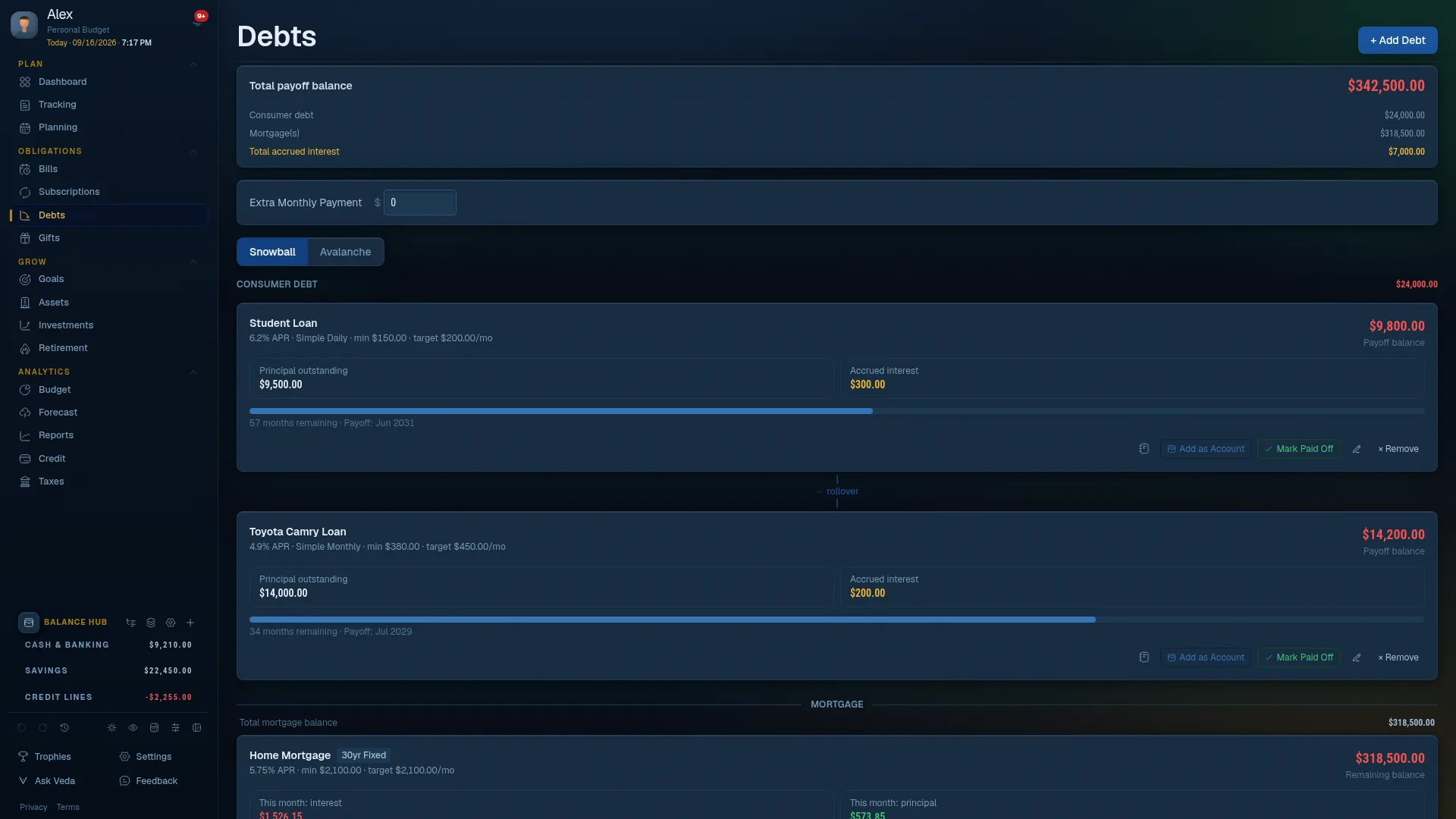
Debt Fields
| Field | Description |
|---|---|
| Name | The name of the debt (e.g., "Visa Card", "Car Loan") |
| Current Balance | How much you currently owe (Debts shows a live, as-of-today estimate between payments) |
| Interest Rate | Annual percentage rate (APR) |
| Minimum Payment | The required monthly minimum |
| Target Payment | How much you plan to actually pay each month |
Payoff Strategies
Finaura calculates two payoff strategies:
- Snowball: Pay off the smallest balance first. Builds momentum with quick wins. Good for motivation.
- Avalanche: Pay off the highest interest rate first. Minimizes total interest paid. Mathematically optimal.
Linking Debt Payments
When logging a debt payment in Transactions, link it to the corresponding debt record. Finaura will automatically reduce the debt balance, keeping your payoff timeline accurate without manual updates - including correctly reversing that effect if you later edit or delete the transaction.
ARM Warning
Adjustable-rate mortgages and ARM loans are flagged with a warning banner reminding you that the rate will adjust.
Goals
Goals lets you set savings targets for anything you're working toward and track your progress over time.
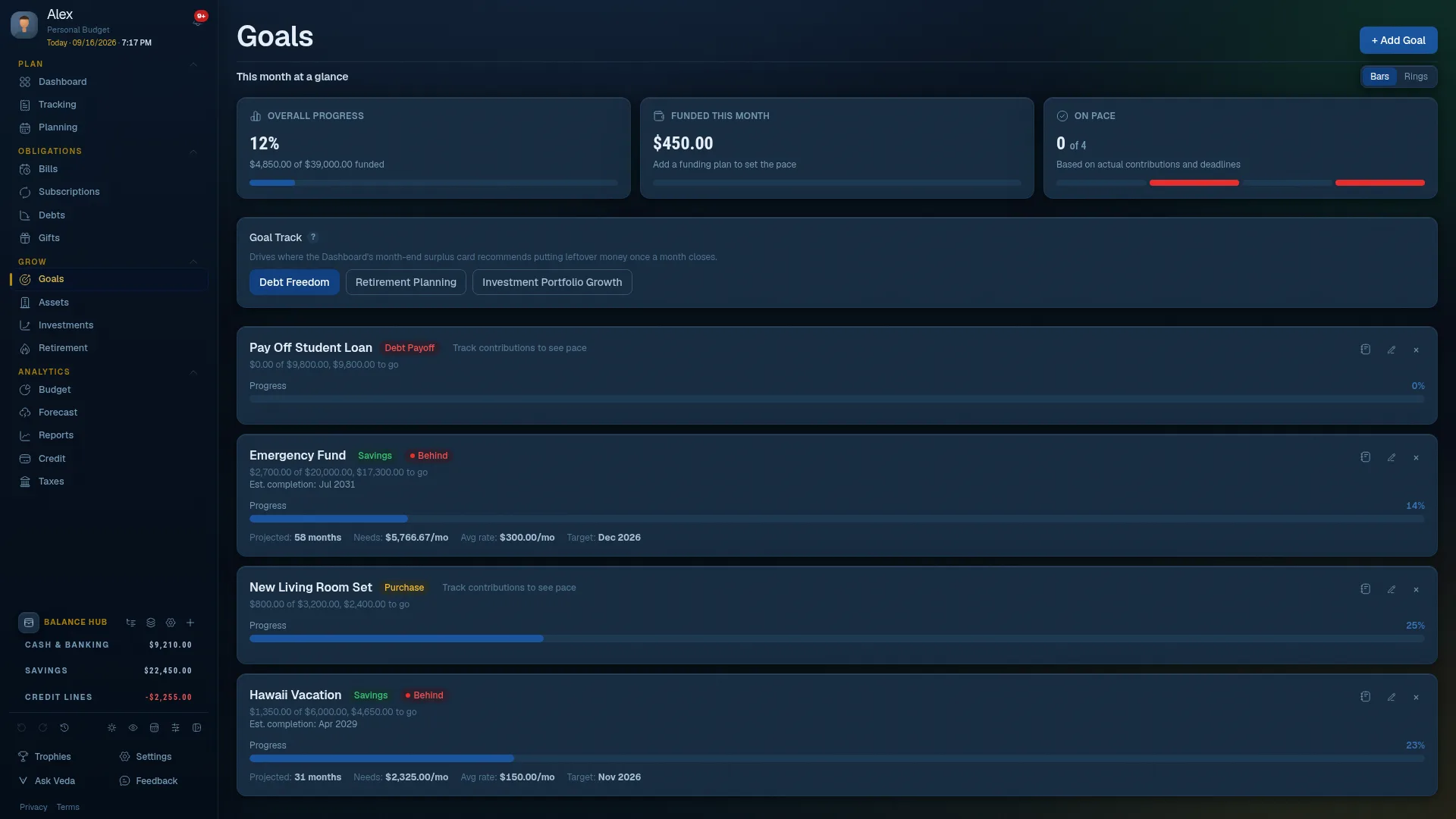
Each goal has a name, a target amount, a current saved amount, and an optional target date. Progress bars fill as you save. A funding-plan card on each goal turns its target into a plain-language plan, whether that's a fixed monthly amount, a deadline-driven amount, a percent of each paycheck, a one-time windfall, or routing month-end surplus toward it.
Linking Transactions to Goals
When logging a savings transaction, you can link it directly to a goal. Finaura automatically updates the goal's progress without requiring manual edits.
Goal Celebration
When you reach a goal's target amount, Finaura triggers a celebration animation and awards a trophy.
This Month at a Glance
The top of the page now shows your overall progress across every goal, how much you funded this month, and whether you're on pace - toggle between a bar view and a ring view to see it however you prefer. Below it, a "you have room to fund your plans" banner suggests how to split any money you have left over this month across every goal with a funding plan set, earliest deadline first. This is only ever a suggestion - it never moves money or records a transaction on its own.
Linking a Stash to a Goal
You can link a Goal directly to a Stash (see Balance Hub) so the Stash itself becomes the goal's real funding source - once linked, the goal and the Stash share one target amount and deadline, so linking a Stash and linking a Category to the same goal are mutually exclusive. If you want a savings category, rather than a specific Stash, to track a goal's progress, link the Category instead.
Assets
Assets tracks everything you own outside your regular bank accounts - real estate, vehicles, and other valuables - alongside what you owe on them, for a net worth that reflects everything, not just what's in the bank.

Asset Types
Add assets like real estate, vehicles, jewelry, or other collectibles. Each asset has a name, category, and estimated current value that you update as it changes.
Maintenance & Renewals
Track registration, insurance, and service reminders per asset, and get nudged when it might be time to refresh a value that's gone stale.
Linking Debt to Assets
Link a debt (like a mortgage or auto loan) to the asset it's tied to. Finaura shows the asset's equity - its value minus what you still owe on it - alongside the raw value.
Net Worth Impact
Assets feed directly into the Net Worth Timeline on your Dashboard, alongside your accounts and investments, so your net worth reflects everything you own.
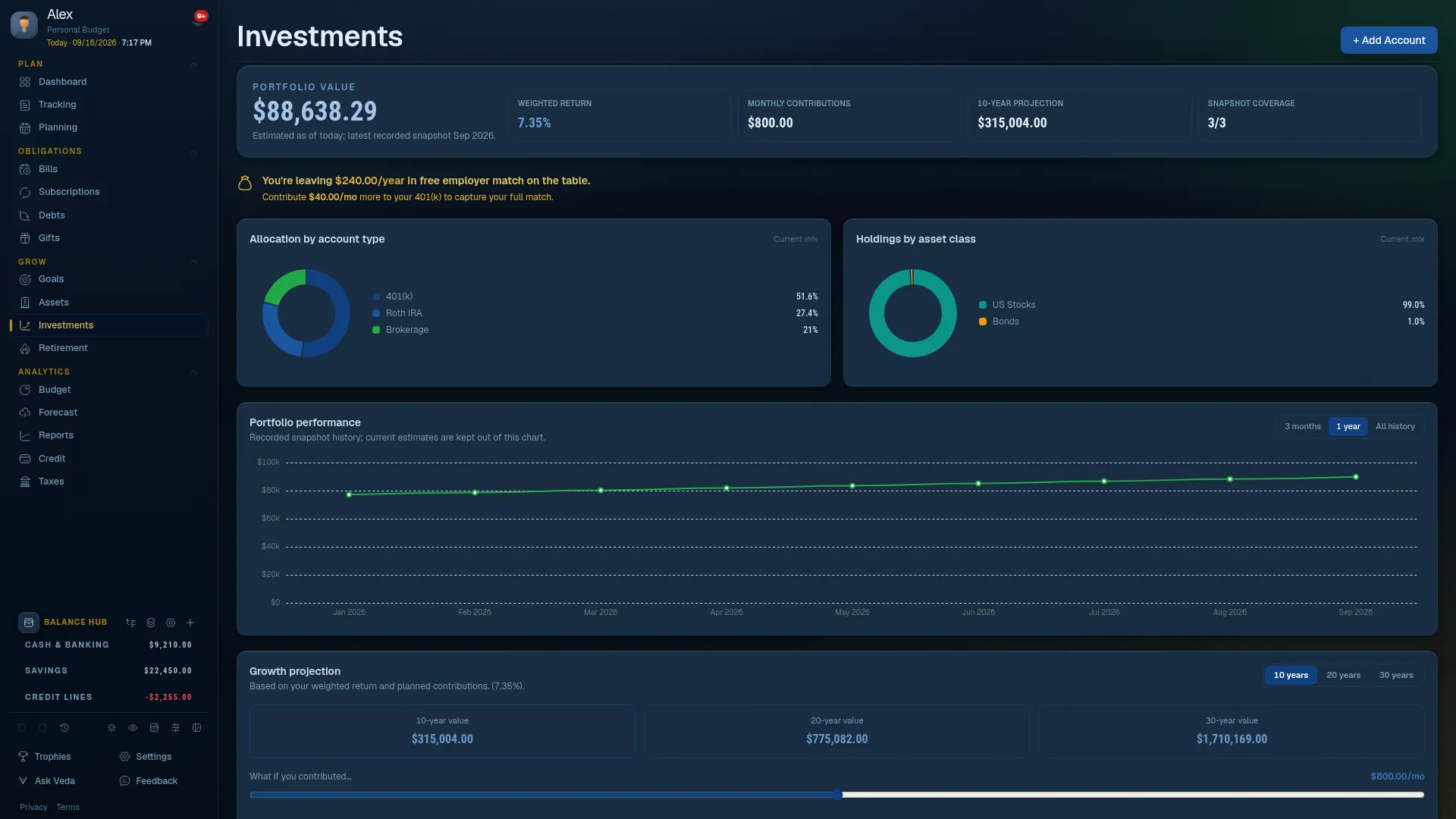
Investments
The Investments view tracks your investment accounts and projects their long-term growth - all without linking to a brokerage.
Account Types
Finaura supports 401(k), Roth IRA, Traditional IRA, HSA, TSP, and general investment accounts. Each account type has relevant settings for contribution limits and employer match.
Snapshots and Live Balances
Manually log the current balance of each account as periodic snapshots. Between snapshots, your displayed balance is a compounding-aware live estimate based on your expected rate of return, so the page doesn't go stale the moment you stop entering numbers - the recorded snapshot history itself is never rewritten.
Employer Match
For 401(k) accounts, configure your employer's match percentage and cap. Finaura calculates the effective value of your contribution including the match and shows if you're leaving match money on the table.
Retirement / FIRE Calculator
The Retirement view projects when you'll be able to retire based on your savings rate, current balances, expected return, and withdrawal rate. The first time you visit, you'll add a short retirement plan (current age, retirement age goal, and expected annual spending) to unlock the full calculator. Adjust the inputs afterward to model different scenarios; they now persist automatically as you edit them.

Forecast
Forecast shows you the next several months of your finances based on your current budget plan. It answers: Will my income cover my expenses over the next several months?
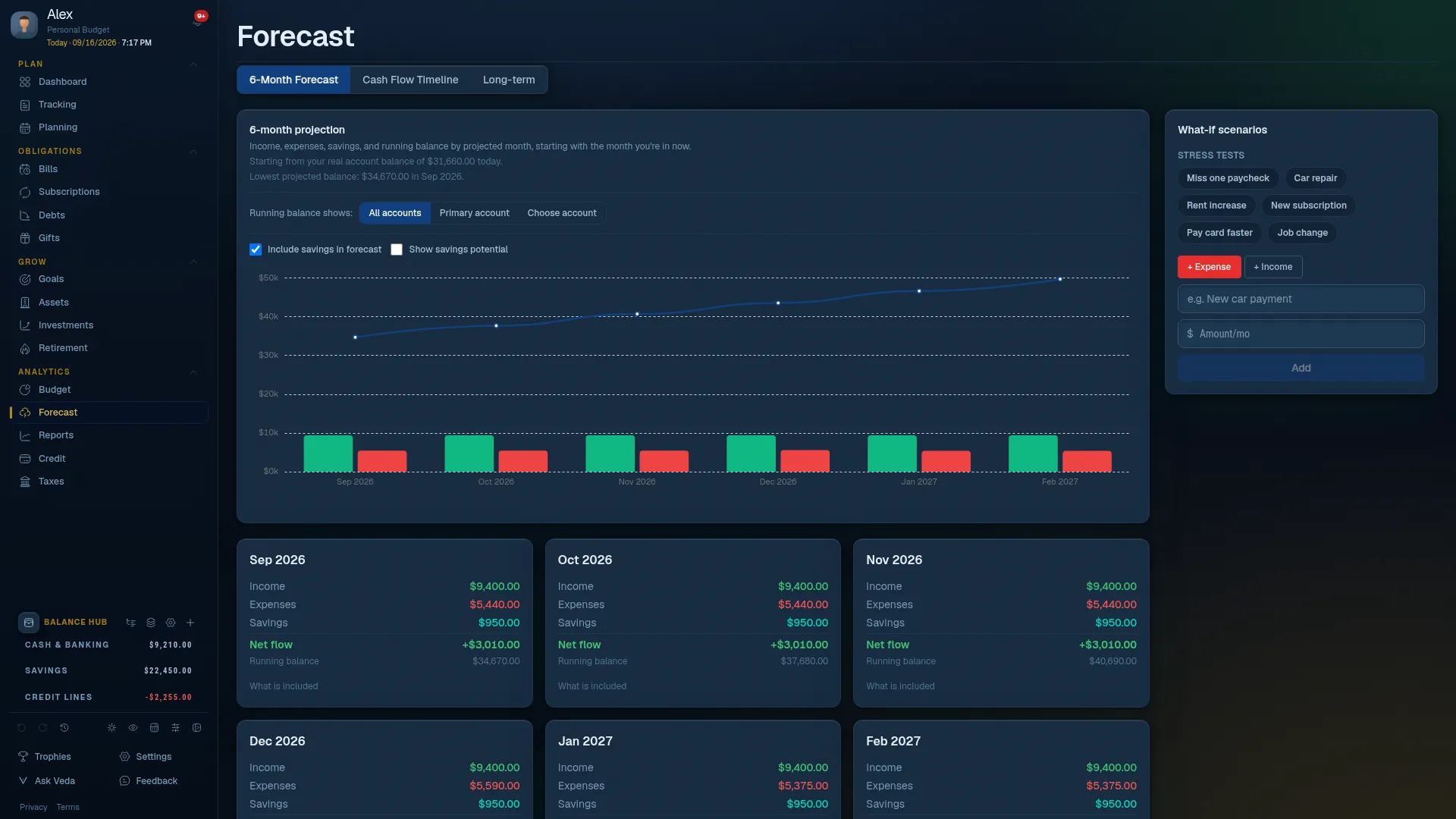
The forecast uses your budgeted income and expenses - not just historical actuals - so it reflects your plan going forward. Try preset stress tests (a missed paycheck, a car repair, a rent increase, and others) or build your own what-if scenario to see how it affects the projection, and check the confidence card in the sidebar to see how much history is behind the numbers.
Reports
Reports provides chart-based views of your financial history, giving you insight into trends, patterns, and net worth over time.

Available Reports
| Report | Shows |
|---|---|
| Smart Review | Every open insight in one place, plus a system-alignment score and where your data connects across the app. |
| Spending Trends | Month-by-month expense totals over time. Supports monthly, quarterly, and yearly granularity. |
| Income vs. Expenses | Grouped bars comparing income and expenses per month, with net shown. |
| Category Breakdown | Pie or bar chart of spending by category for a selected date range. |
| Month-over-Month | Income, expense, and savings deltas across every completed month, with the biggest movers per month. |
| Spending Per Account | Inflow, outflow, savings, and transfers broken down per bank account. |
| Cashflow | Per-category spending volatility and a fixed-vs-discretionary spending split over time. |
| Net Worth Timeline | Your assets minus liabilities over time, plotted as a line chart. |
| Financial Story | A chronological timeline of detected milestones and personal memories. |
| Monthly Report | A frozen, downloadable snapshot of a completed month or year. |
| Custom | Charts and reports you build yourself, addable to any dashboard. |
Customizing the Tab Bar
Use the "Customize" control next to the tabs to hide any report you don't use and reorder the rest.
Date Range Selection
Most reports let you select a custom date range - last 3 months, last 12 months, year to date, or a custom range.
Financial Story
Financial Story turns your data into a narrative timeline instead of a chart. Savings, debt, goal, and net-worth milestones are detected automatically as new data comes in - crossing a savings threshold, paying off a debt, hitting a new net-worth high - grouped by year and month alongside personal memories you add yourself (a new job, a move, anything worth marking). Pin your favorite moments into a Highlights row, hide any you'd rather not see, and filter the timeline by category.

Build a Widget
If none of the built-in reports show quite what you need, build your own. Pick a data source (transactions, budget vs. actual, debts, investments, goals, bills, subscriptions, credit, or net worth), a chart type (line, bar, stacked bar, area, donut, or a single number), and how to group and total it - a live preview updates as you go, so there's no separate "generate" step. Once saved, every widget you build shows up in the "Available widgets" list on any dashboard, right alongside the built-in ones, and has its own "View full report" page with a data table and CSV export.
Monthly & Yearly Report
Generate a frozen snapshot of a month or year once it's finished - income, expenses and savings, category detail down to the individual transactions behind each number, top merchants, spending by tag, net worth, debts, and goals. A small banner on the Dashboard nudges you once a period is ready to generate. Download the finished report as a PDF to keep or share.
A generated report never changes after the fact, even if you later rename a category or pay off a debt - it's meant to read like a real statement of that period, not a live view that could quietly drift.
Credit Health
Credit Health lets you track your credit score over time, monitor your credit utilization, and build a consistent payment history - entirely on your device with no credit pull required.

Manually log your credit score whenever you check it (through a free service like Credit Karma or your bank's app). Finaura charts the history over time so you can see if your habits are moving the needle.
Add your credit cards and their limits to track utilization across all accounts. Keeping utilization below 30% (and ideally below 10%) is one of the strongest credit score factors. An Action Plan tab ranks concrete next steps - utilization targets, statement-timing hints, and payment-history nudges - by how much impact they'd actually have.
Tax Estimator
The Tax Estimator gives you a ballpark of your federal and state tax liability (or expected refund) for the year - without sending any data to a server.

Supported Income Types
- W-2: Standard employee wages
- 1099 / Self-employment: Freelance, contractor, or business income
- Mixed: Both W-2 and 1099 income in the same year
Filing Status
Supports Single, Married Filing Jointly (MFJ), Married Filing Separately (MFS), Head of Household (HoH), and Qualifying Surviving Spouse.
One Consolidated Results Card
Your projected refund or amount owed, a full income and tax breakdown, average/marginal rate, quarterly estimates (for 1099 filers), and withholding guidance (for W-2 filers) all live together in one card at the top of the page, instead of scattered across several panels.
Deductions
The estimator compares the Standard Deduction to your itemized deductions and uses whichever is larger. Tax-deductible transactions tagged in your transaction history (medical, charitable donations, vehicle mileage, and more) are automatically totaled and pre-filled.
Vehicle Mileage
Business, military-move, and charitable mileage logged on transactions (see Transactions) flow into a dedicated mileage breakdown card, using the real IRS standard mileage rate for the date each trip happened.
State Taxes
Finaura includes built-in state tax tables for all 50 states. Select your state to include a state tax estimate alongside the federal calculation.
Trophies
Finaura awards trophies as you hit financial milestones and build good habits. They're a fun way to celebrate progress and stay motivated.

Examples of Trophies
| Trophy | Earned When |
|---|---|
| First Entry | Log your first transaction |
| Logging Streak | Log transactions for multiple consecutive days |
| Debt-Free | Pay off a debt completely |
| Goal Reached | Hit a savings goal target |
| Budget Keeper | Stay within budget for a full month |
| Bill Perfect | Pay every bill on time for a month |
Trophies is always reachable in the nav and can't be hidden - view every trophy you've earned, and every one still locked, from there any time.
Veda Assistant
Veda is Finaura's built-in chat assistant. Ask it plain-English questions about your own data - "How much did I spend on groceries last month?", "Am I on track with my Vacation Fund goal?" - and it answers using your real transactions, budgets, and balances.

Adding a Transaction
Veda's one action beyond answering questions: ask it to log something ("add a $45 expense for dinner") and it drafts an editable card - amount, date, category, details - for you to review and confirm. Nothing is written until you tap Confirm.

Fully On-Device
Veda runs entirely on-device, parsing your question against the local IndexedDB database. It never sends your question or your data anywhere, and it has no live internet access - so it can't check the weather, sports scores, or stock prices. If you ask something that would need a live connection, Veda explains why it can't help instead of guessing.
What It Won't Do
An oversized message or off-topic language gets a calm reply steering the conversation back to your finances - this is a courtesy filter, not a moderation system. Veda also recognizes when you're asking about a month that's in the future or before you started tracking, and explains why there's nothing to report instead of showing a misleading "$0".
Turning Veda Off
Settings → Customize has independent switches for Veda's insights and the chat assistant, so you can turn either off without affecting the other.
Notification Reminders
Beyond chat, Veda's reminder engine can also nudge you about upcoming bills, budget overruns, goal progress, subscription renewals, gifts, and scheduled transactions - each notification type has its own on/off switch in Settings.
Smart Insights
Smart Insights is the engine behind the small badges and suggestion panels you'll see across the app - a category over budget, a bill about to come due, an investment account with no recent snapshot, and dozens of similar checks, all computed once and shared everywhere they show up.
Where You'll See Them
A scoped insight panel is embedded on most pages, showing only what's relevant there. Reports' "Smart Review" tab shows the full unfiltered list at once, along with a 0-100 system-alignment score and a map of where your data connects across the app.
Dismissing and Snoozing
Dismiss an insight permanently, or snooze it for a week. A dismissal is smart about it - if the underlying condition changes (the bill gets paid, the budget gets fixed), the same insight can resurface even if you dismissed the old version of it. Use "Snooze all" or "Dismiss all" on any panel showing more than one insight to clear the whole list at once.
Turning Insights Off
Settings → Customize can turn off Smart Insights entirely, independently of the Veda chat assistant.
Journal
Journal is a place for free-form notes, decisions, reflections, and plans - separate from your transaction ledger and from Financial Story's auto-detected timeline. It isn't a main sidebar item; turn it on from Settings → Customize and reach it from the Journal icon in the desktop sidebar's action row, or the mobile "More" tray.

Rich Text and Entry Types
Each entry supports basic formatting - bold, italic, headings, lists, checkboxes, and links - and one of 10 entry types: Note, Decision, Reflection, Plan, Goal Update, Debt Update, Budget Review, Win, Concern, or Other. Give an entry its own title, or leave it blank and Finaura generates one from your first line.
Linking, Tags, and Follow-Ups
Link an entry to a real record - a transaction, bill, debt, goal, investment, asset, subscription, category, or account, or an auto-detected Financial Story milestone - so your notes about a specific thing are easy to find again later. Tag entries for your own organization, mark one private so it's left out if you sync with someone else, favorite it, or set a follow-up date to remind yourself to come back to it.
Autosave
Entries save automatically as you type, with a small status indicator (Saving.../Saved) so you always know your notes are safe. A quick "Add a note" icon on Debts, Goals, and Investments opens a new entry pre-linked to that specific record.
Calculator
A full-featured financial calculator that floats over whatever page you're on (or opens as a bottom sheet on mobile), so you never have to leave what you're doing to run the numbers. Reach it from the Calculator icon in the desktop sidebar's action row or the mobile "More" tray - drag its title bar on desktop to move it wherever you like.

Financial Shortcuts
Beyond plain arithmetic, a collapsible "Financial shortcuts" section covers 9 common calculations: percent of, percent change, increase or decrease by a percent, split an amount, monthly to annual (and back), savings rate, and how much is left of something - each with its own small form, feeding the same expression engine and history as everything else.
History and Memory
Your last 50 calculations are saved to a History tab. Tap a past entry's expression to restore the full calculation, or tap its result to start a new one from just that number. Memory (M+, M-, MR, MC) lasts for the length of your session. Both history and memory stay on this device only - never synced or backed up, since they're scratch work, not financial data.
Filling In a Field Directly
A small calculator icon next to a Transaction's Amount field (desktop) or a Planning budget cell opens the calculator pre-filled with whatever's already there. Whatever you land on can be sent straight back into that field.
Settings Overview
Settings is where you personalize Finaura to match your life. Key settings groups:

| Section | What You Can Configure |
|---|---|
| Profile | Your name, display name, and the welcome greeting toggle |
| Household | Gross income, adults, dependents under 17 |
| Security | PIN/password, recovery password, passkey, 2FA (TOTP) |
| Appearance | Pick from 12 named light/dark themes - see Appearance & Themes |
| Budget | Starting year, rollover opt-in, late income shift, budget audit thresholds |
| Accounts | Starting balances, primary account, and Balance Hub groups |
| Budgets | Create, switch, and manage separate budget workspaces |
| Paycheck Planner | Pay frequency (weekly, biweekly, semimonthly, monthly) |
| Categories & Tags | Add, rename, reorder, deactivate categories; manage tags and auto-categorization rules |
| Customize | Default landing page, mobile dock shortcut, which action-center icons and universal-menu actions show, keyboard shortcuts, and which nav items show |
| Google Drive Sync | Enable cross-device sync via your own Google Drive |
| Family Mode | Enable family member assignment on transactions |
| Data | Export JSON/CSV backup, import/restore, import from CSV, YNAB import |
| Install App | Add Finaura to your home screen or desktop |
| Accessibility | Text size, reduce motion, high contrast, dyslexia-friendly font, always-underline links |
| Language & Region | English/Spanish/French, currency display, and number/date format |
| Help | Replay tours, contact support, legal documents, privacy notice |
Accessibility
The Accessibility card lets you scale text size up or down app-wide, turn off page/drawer/count-up animations, switch to a higher-contrast color scheme, use a dyslexia-friendly font, and always underline links. Every change applies live and is saved automatically - no separate "Save" step.
Language & Currency
The Language & Region card offers an English/Spanish/French interface selector (English is the complete baseline; Spanish and French cover navigation, page titles, empty states, buttons, and most toasts) and a currency display selector. Three additional display-only settings let you choose where the currency symbol sits, how thousands/decimals are separated, and how dates are formatted, without changing how any number is actually stored.
Redacted Mode
Redacted Mode masks every dollar figure across the app behind a row of dots, while every calculation keeps running normally underneath. It's for the moment someone glances at your screen and you'd rather not show every number - a call in the next room, a screen share, someone looking over your shoulder.
Turn it on from Settings → Privacy, or from the quick icon in the desktop action row or the mobile "More" tray. It's a device-only setting - it never syncs to your other devices or gets included in a backup, since it describes what's on this screen right now, not a lasting choice about your data.
Personal Budget Mark
The Personal Budget Mark is a small custom image - a photo, a logo, a hand-drawn scribble, whatever you like - that replaces the plain Finaura logo mark at the top of the sidebar (and in the equivalent spot on mobile) with something that's visually yours. It's purely cosmetic: it doesn't change any data, any calculation, or any permission, it just makes the app feel more like your own household's budget instead of a generic template.
Set one from Settings → Customize. Pick any image; it's automatically resized down to a small square and compressed before it's stored, so even a large photo ends up as a lightweight file inside your own local database (and inside your encrypted Google Drive sync payload, if sync is on). If you'd rather go back to the plain logo, remove the mark the same way you set it - there's no separate "reset" step.
Per Person, Not Per Shared Budget
Your Personal Budget Mark travels with you, not with the household budget. If you share a budget with someone else, they don't inherit your mark, and you don't inherit theirs - each of you sees your own image on your own device(s), the same way each of you can pick your own name and your own custom dashboards. Signing in with the same Google account on a second device is what makes your mark (and only your mark) show up there too.
The Budget Home Menu
Clicking the mark opens a small "Budget Home" menu with quick links to Planning and Bills, a link into Personalization (where you set the mark itself and your display name), and a Lock app action that locks the vault immediately - useful any time you want to step away without waiting for the auto-lock timer to catch up.
Appearance & Themes
Instead of a plain light/dark toggle, Finaura ships with 12 complete, named themes - 6 light-shaded and 6 dark-shaded - each with its own coordinated palette for every card, chart, and accent color in the app. Pick one from Settings → Appearance; the picker shows a live preview swatch for each option before you commit.
Light themes: Classic Light, Ocean, Sunset, Lagoon, Harbor Gold, and Crimson Gold. Dark themes: Midnight, Forest, Graphite, Blue Steel, Cocoa Ember, and Ember Night. Switching themes is instant and applies everywhere at once - the sidebar, the main content area, every chart, and every button pick up the new palette together, so nothing is left over from the old theme.
Multiple Budget Workspaces
Keep entirely separate budget workspaces - for example, one for personal finances and one for a side business - each with its own categories, budgets, transactions, and accounts.
Creating and Switching
Go to Settings → Budgets to create a new workspace or switch between existing ones. A mobile budget switcher is also available near the top of the app on small screens.
What Stays Separate
Categories, budgets, transactions, accounts, groups, and most other data are scoped to whichever workspace is active. Settings that describe you as a person, rather than a specific budget, stay shared across workspaces.
Paycheck Planner
The Paycheck Planner reorganizes your budget around your actual pay schedule rather than the full calendar month. It shows which bills and expenses fall within each paycheck cycle, helping you avoid the stress of a large bill hitting between paychecks.
Set your pay frequency in Settings (weekly, biweekly, semimonthly, or monthly) and your typical payday. The Planner then divides your monthly budget into paycheck-sized slices and assigns each expense to the cycle when it's due - proportionally, based on real spending history where available, unless you've set an exact manual split for a category.
Google Drive Sync (Optional)
By default, your Finaura data lives only on one device. If you want to use Finaura on multiple devices - for example, your phone and your laptop - you can enable Google Drive Sync.
How It Works
When enabled, Finaura saves a single encrypted JSON file to a private folder in your own Google Drive account. No Finaura server is involved. The file is named finaura-sync.json and is stored in a Finaura-specific folder that only the app can access.
Enabling Sync
drive.file scope), never to your full DriveHousehold Sharing
You can share your sync file with a partner or household member so you both see the same data. Use Settings → Google Drive Sync → Pair with Partner and enter their email to grant them access.
Auto-Unlock
Once you've entered your sync passphrase once, you can opt in to have this device unlock sync automatically going forward using the same PIN or password you already use to open the app, instead of re-entering the passphrase every session.
Export & Backup
Regularly backing up your Finaura data is strongly recommended. Since data is stored locally, device loss or browser data clearing could erase your records without a backup.
JSON Export (Full Backup)
Go to Settings → Data → Export JSON to download a complete backup of all your data: categories, budgets, transactions, bills, debts, goals, investments, subscriptions, credit records, custom dashboards, account groups, settings, and more. This file can be used to fully restore Finaura on any device.
CSV Export
Export your transactions as a CSV file for use in spreadsheet applications. The CSV includes date, effective date, type, category, amount, details, and running balance.
Restoring from Backup
Go to Settings → Data → Import / Restore and upload your JSON backup file. Finaura previews the backup contents before applying. Restoration replaces your data, but keeps this device's own PIN, recovery password, and sync connection exactly as they are - a restored backup never overwrites how you unlock the device you're restoring onto.
Importing Data
You can bring in transaction data from external sources.
CSV Import
Go to Settings → Data → Import CSV. Upload a file exported from your bank: CSV, OFX/QFX, or QIF. Finaura's import wizard lets you map your CSV file's columns to Finaura's fields (OFX/QFX and QIF already have well-defined fields, so there's no mapping step for those). It also applies your auto-categorization rules automatically.
YNAB and Other Budgeting App Imports
If you're migrating from YNAB or a similar budgeting app, Finaura includes dedicated importers that understand their export formats, including category groups. Go to Settings → Data → Import and choose your source app.
Family Mode
Family Mode adds a layer of household awareness to your budgeting. When enabled, you can tag transactions and income sources with a family member name, making it easy to see each person's contribution and spending.
Enabling Family Mode
Go to Settings → Household & Family and toggle it on. Add family members by name.
What It Unlocks
- Transaction ownership: Tag each transaction as "mine," "theirs," or "shared."
- Income badges: Income categories show the family member badge in Budget Planning.
- Filtering: Filter the Transactions view by family member to see individual spending.
- Per-member credit tracking: Credit Health can track a separate profile per family member.
Privacy & Data Security
Finaura is designed from the ground up with privacy as a non-negotiable principle.
| What | How Finaura Handles It |
|---|---|
| Your transaction data | Stored only on your device in the browser's IndexedDB. Never sent anywhere. |
| Your PIN / password | Hashed using PBKDF2-SHA-256 with 600,000 iterations and a random salt before storage. Never stored or transmitted in plaintext. |
| Server storage | There is no Finaura server. There is no account. |
| Bank linking | Finaura never connects to your bank. No Plaid, no Yodlee, no aggregators. |
| Advertising | Finaura shows no advertisements and collects no behavioral data. |
| Data selling | There is no data to sell. We never receive it. |
| Google Drive Sync | Optional. Your data goes to your own Google Drive account, encrypted. Finaura never sees it. |
| Recovery password | Hashed the same way as your PIN. Never stored in plaintext. |
| Support form | Optional. Routes through a third-party form service; you're asked not to include financial specifics in a message. |
Frequently Asked Questions
Is Finaura free?
Do I need to create an account?
Can I use Finaura on multiple devices?
What happens if I clear my browser's data?
Can I import my data from another app?
Does Finaura connect to my bank?
What if I forget my PIN?
How does Budget Rollover work?
How does Late Income Shift work?
What is the Balance Hub?
Can Veda actually do things, or just answer questions?
Can I use Finaura offline?
Glossary
| Term | Definition |
|---|---|
| Budget Amount | The planned spending limit for a category in a specific month, set in Budget Planning. |
| Category | A named grouping for transactions. Every transaction and budget amount belongs to exactly one category. |
| Balance Hub | The persistent sidebar panel showing every tracked account, grouped, with live balances. |
| Effective Date | The month a transaction is counted toward for budgeting purposes. Usually the same as the transaction date, but can differ with Late Income Shift. |
| Apply to All Months | A one-tap chip that appears right after you save a budget cell, letting you broadcast that exact amount to every other month in the year. Each month's amount is otherwise independent - Finaura no longer carries a budget forward automatically. |
| Rollover | An opt-in feature that carries unspent budget surplus forward to the next month. |
| Stash | A named sub-goal inside one savings account (e.g. "Vacation"), tracked from the transactions tagged to it, without splitting the money into a separate account. |
| Redacted Mode | A device-only toggle that masks every dollar figure on screen behind dots while every calculation keeps running normally underneath. |
| Late Income Shift | An opt-in feature that attributes income received late in a month to the following month's budget period. |
| To Be Allocated | The difference between total income budget and total expense + savings budget for a given month. Represents unassigned income. |
| Snowball | A debt payoff strategy that prioritizes the lowest-balance debt first for motivational wins. |
| Avalanche | A debt payoff strategy that prioritizes the highest-interest-rate debt first to minimize total interest paid. |
| Smart Insight | A single cross-module suggestion or alert (a category over budget, a bill coming due, and similar), computed once and shared everywhere it's relevant. |
| PBKDF2 | Password-Based Key Derivation Function 2 - the cryptographic algorithm used to hash your PIN, making it computationally expensive to crack. |
| PWA | Progressive Web App - a website that can be installed like a native app and works offline. |
| IndexedDB | A browser-native database used by Finaura to store all your data locally on your device. |
| TOTP | Time-Based One-Time Password - the standard for two-factor authentication apps like Google Authenticator. |
| Split Transaction | A single transaction divided across multiple categories (e.g., a $80 store purchase split as $50 Groceries + $30 Household). |
| Scheduled Transaction | A transaction entered ahead of time that has no effect on balances or budgets until you confirm it. |
| Soft Delete | Marking a category as inactive rather than permanently deleting it, to preserve historical transaction data. |
Finaura User Guide · Version 2.0 · All data stored on your device · No server. No account. No tracking.